
Last updated: April 24, 2026
Three cups of chai and four hours of frustration later, I was staring at my first successful Make.com scenario. My client needed an AI agent that could take customer emails, analyze sentiment, and automatically route angry customers to priority support while sending happy feedback to the marketing team.

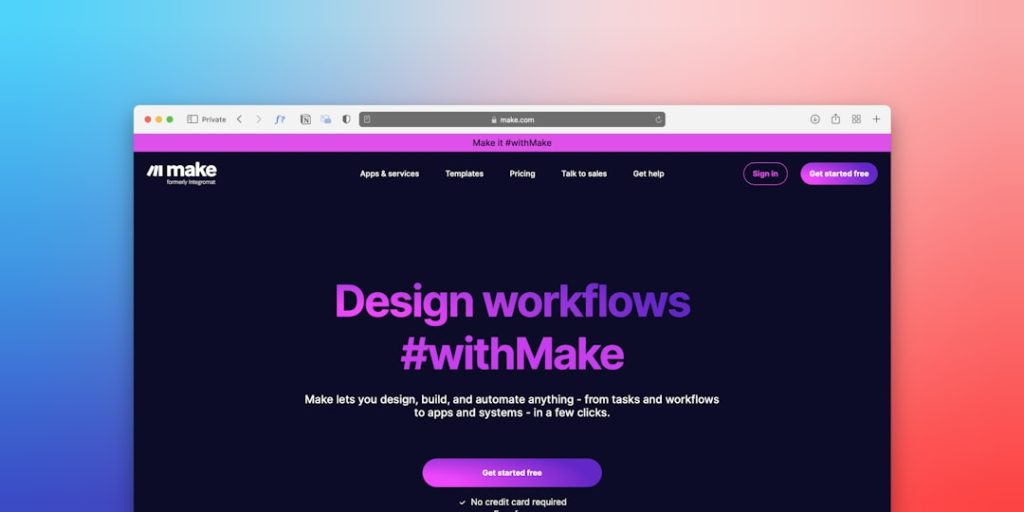
Photo by Trevor Neely via Unsplash
I’d tried Zapier before, but their AI integrations felt limited. A fellow freelancer in Karachi mentioned Make.com during a local tech meetup, claiming it was better for complex automations. I was skeptical, but with a deadline looming, I decided to give it a shot.
That was eight months ago. Since then, I’ve built over 20 AI agents for clients using Make.com, and I’m here to tell you exactly what this tool can and cannot do for your business.
What Exactly is Make.com?
Think of Make.com as a visual programming language for non-programmers. Instead of writing code, you drag and drop modules (they call them “modules”) onto a canvas and connect them with lines.
Each module does one specific job. One module might watch for new emails. Another might send that email text to ChatGPT for analysis. A third module could post the results to Slack. You connect these modules in sequence, creating what Make calls a “scenario.”
The magic happens when you add AI modules. Make integrates with OpenAI, Anthropic, Google AI, and dozens of other AI services. This means you can build agents that read, write, analyze, and make decisions without touching a single line of code.
Setting Up Make.com (The Real Process)
I’ll walk you through exactly what I did, including the parts that confused me.
First, I signed up at make.com. The registration was straightforward, just email and password. No credit card required for the free trial, which I appreciated.
The dashboard opened with a “Create a new scenario” button prominently displayed. I clicked it and immediately felt overwhelmed. There were hundreds of app icons staring back at me. Gmail, Slack, OpenAI, Airtable, Shopify. The search bar became my best friend.
For my first project, I searched “Gmail” and dragged the Gmail module onto the canvas. A configuration panel opened on the right. This is where I hit my first snag.
Make wanted me to “Create a connection” to Gmail. This meant authorizing Make to access my Gmail account. I clicked “Add,” got redirected to Google, went through the usual “Allow Make to access your Gmail” screens, and got bounced back to Make.
The whole connection process took about three minutes, but it felt longer because I wasn’t sure if it worked until I saw “Connection successful” in green text.
Next, I needed to choose what the Gmail module should do. The dropdown showed options like “Watch emails,” “Send an email,” “Search emails.” I selected “Watch emails” because I wanted to trigger the automation whenever a new email arrived.
More configuration options appeared. Which folder to watch? How many emails to process at once? Should it only watch for emails from specific senders?
This is where Make’s learning curve reveals itself. Every module has 5-10 configuration options, and it’s not always obvious what each one does. I spent a good 20 minutes just figuring out the Gmail module.
Adding the OpenAI module was similar but trickier. I needed an OpenAI API key, which meant creating an OpenAI account, navigating to their API section, generating a key, and pasting it into Make. The whole process took another 15 minutes.
In total, my first basic scenario took about two hours to set up. Not because Make is difficult, but because I was learning how each piece worked.
What I Built (Real Example with Results)
Let me tell you about the AI agent that made my client extremely happy and earned me a 5-star review.
A digital marketing agency in Dubai was drowning in client feedback emails. They were getting 50-80 emails daily from various clients, and their account managers were spending hours just categorizing and routing these emails.
I built them an AI agent using Make.com that:
1. Monitored their support email inbox
2. Used ChatGPT to analyze each email’s sentiment and urgency
3. Extracted key information like client name, project mentioned, and issue type
4. Automatically assigned emails to the right account manager based on the client
5. Created tasks in their project management tool (ClickUp) for urgent issues
6. Sent daily summaries to the agency owner
The scenario had 12 modules connected in a flowchart. Gmail module watched for emails. OpenAI module analyzed content. Multiple “Router” modules (Make’s way of creating if-then logic) directed emails down different paths based on sentiment scores.
For positive feedback, emails went to the marketing manager. For complaints, they went to account managers with “high priority” labels. For technical issues, they created immediate tasks in ClickUp.
The results? The agency went from spending 2-3 hours daily on email triage to maybe 30 minutes reviewing the AI’s decisions. Their response time to urgent client issues dropped from 4-6 hours to under 1 hour.
My client was so impressed they referred me to three other agencies. That one Make.com scenario has generated over $3,000 in follow-up work.
What Surprised Me (Good and Bad)
The good surprises first.
Make’s error handling is excellent. When something breaks (and it will), Make shows you exactly which module failed and why. I once had a scenario fail because I forgot to handle emails without subject lines. Make highlighted the exact module and showed me the error message from ChatGPT.
The execution history is incredibly detailed. I can see every single run of every scenario, what data passed between modules, and how long each step took. This made debugging much easier than I expected.
Make’s template library is genuinely useful. They have pre-built scenarios for common tasks like “Analyze social media mentions with AI” or “Auto-respond to customer emails based on sentiment.” These templates saved me hours on similar projects.
Now the frustrating surprises.
Make’s documentation assumes you already understand automation concepts. Terms like “webhooks,” “JSON parsing,” and “HTTP requests” get thrown around without explanation. As someone who started as a complete non-coder, I spent many evenings on YouTube learning these concepts.
The mobile app is basically useless. You can view scenarios and see if they’re running, but you cannot edit anything meaningful on your phone. This bit me when a client’s scenario broke on a Friday evening, and I was away from my laptop.
Make’s AI modules work great with popular services like OpenAI and Google AI, but integrating newer AI tools often requires webhook workarounds that feel like coding through the back door.
Pricing Breakdown (What You Actually Need)
Make’s pricing confused me initially, so let me break it down clearly.
The free plan gives you 1,000 “operations” per month. One operation equals one module doing one task. So if your scenario has 5 modules, each run costs 5 operations. You can build unlimited scenarios, but you’ll hit that 1,000 operation limit quickly.
For reference, my email analysis scenario uses 8 operations per email. At 20 emails per day, that’s 4,800 operations monthly. The free plan would last about 6 days.
The Core plan costs $9/month and includes 10,000 operations. This is where most small businesses should start. It also adds premium apps and removes the Make branding from webhooks.
Pro plan is $16/month for 10,000 operations but adds features like custom functions and priority support. The operation count is the same as Core, so you’re paying $7 extra for advanced features most people won’t use.
Teams plan jumps to $29/month for 10,000 operations plus team collaboration features. Only worth it if multiple people need to edit scenarios.
Enterprise starts at $99/month with 100,000 operations.
Here’s what I actually recommend: Start with the free plan to learn the basics. Once you hit the operation limit (you will), upgrade to Core. I’ve built complex AI agents for clients on the Core plan without issues.
One gotcha: operations count even when scenarios fail. If your OpenAI module fails because you hit rate limits, you still lose an operation. This adds up when you’re testing.
Who Should Use Make.com (And Who Shouldn’t)
Make.com is perfect for:
Small business owners who get the same types of emails, messages, or data repeatedly and want AI to handle the initial processing. Think real estate agents categorizing leads, consultants routing client requests, or e-commerce stores analyzing product reviews.
Freelancers like me who want to offer AI automation services without learning to code. Make’s visual interface lets you build impressive solutions that clients will happily pay for.
Marketing teams who need to connect AI analysis to multiple tools. Analyze social media sentiment and update CRM records, or scan support tickets and alert the right team members.
Make.com is NOT good for:
Anyone who needs real-time responses. Make scenarios run every few minutes at best. If you need instant AI responses, you need a different solution.
People who want simple, one-step automations. If you just need “when I get an email, forward it to Slack,” Zapier is easier and cheaper.
Businesses with complex data transformation needs. Make can manipulate data, but it gets messy quickly. You’ll find yourself wanting to write actual code.
Companies with strict security requirements. Make processes your data on their servers. Some industries cannot accept this.
My Honest Verdict After 8 Months
Make.com has become my go-to tool for building AI agents, but it’s not perfect.
The learning curve is real. Expect to spend your first week feeling confused and watching YouTube tutorials. I probably watched 15 hours of Make.com tutorials before I felt comfortable.
Once you understand how Make thinks, it becomes incredibly powerful. I can now build AI agents that would have required hiring a developer just two years ago. My clients are consistently impressed with what’s possible.
The pricing feels fair for what you get, but operation limits mean you need to think carefully about scenario efficiency. I’ve learned to combine multiple tasks into single modules where possible.
Make’s reliability has been solid. In 8 months, I’ve experienced maybe 3 hours of downtime total. When scenarios break, it’s usually my fault (wrong API key, malformed data) rather than Make’s platform.
If you’re serious about building AI agents and willing to invest time learning the platform, Make.com will serve you well. If you want something that works perfectly on day one with zero learning curve, look elsewhere.
Alternatives Worth Considering
Zapier remains easier for simple automations. Their AI features are more limited, but the user interface is more beginner-friendly. If you need basic AI text analysis connected to popular apps, Zapier might be enough.
N8N is open-source and more powerful than Make, but requires technical knowledge to set up and maintain. You can run it on your own servers, which some businesses prefer for security. Only consider this if you have developer resources.
Related: Make.com Pricing 2026: Complete Breakdown After Building 50+ Automations (Honest Review)
Related: n8n Review 2026: I Used It for 8 Months to Build AI Agents (Honest Verdict)
Microsoft Power Automate works well if you’re already in the Microsoft ecosystem. Their AI Builder includes pre-trained models for common tasks like form processing and sentiment analysis. The interface feels more corporate and less intuitive than Make.
Final Thoughts
After 8 months and 20+ client projects, Make.com has proven itself as a legitimate tool for building AI agents without coding. It’s not the easiest tool to learn, but it’s powerful enough to build solutions that clients will pay real money for.
The key is managing expectations. You’re not going to build the next ChatGPT with Make.com, but you can absolutely create AI agents that save businesses hours of manual work each week.
If you decide to try Make.com, give yourself two weeks to get comfortable. Start with their templates, watch tutorials, and don’t get discouraged when your first few scenarios break. Every Make.com user has been there.
The investment in learning this tool has paid off significantly for my freelancing business. Clients are always impressed when I demo an AI agent built in Make, and I can charge premium rates for these solutions.
Can Make.com work without any technical knowledge?
You need basic technical understanding. Terms like API, JSON, and webhooks come up regularly. You don’t need to code, but you should be comfortable learning new technical concepts. I recommend watching YouTube tutorials before diving in.
How much does it really cost per month for a small business?
Most small businesses need the Core plan at $9/month. The free plan’s 1,000 operations run out quickly with AI scenarios. A typical AI email analysis scenario uses 6-8 operations per email, so 20 emails daily would need about 5,000 operations monthly.
Can Make.com replace hiring a developer for AI projects?
For many automation tasks, yes. I’ve built solutions that would have cost clients $3,000-5,000 to develop custom. However, Make has limitations. You cannot build custom AI models, create mobile apps, or handle complex data processing that requires real programming.
What happens when Make.com scenarios break?
Make sends email notifications when scenarios fail and shows detailed error logs. Most breaks happen due to API changes, connection timeouts, or malformed data. You can usually fix issues within 10-15 minutes once you understand the error messages.
Is my data secure with Make.com?
Make processes data on their servers and claims SOC 2 compliance, but your data does pass through their systems. For highly sensitive data, consider alternatives like N8N that you can host yourself. Read Make’s privacy policy carefully if data security is critical for your business.